Put the piece first
Remove the shooting surface or holder. Refine the mask around chain links, clasps and open spaces, then choose a plain background for your listing.
Explore background removalFor jewelry sellers
Turn your product photos into clean listings and styled collection images. Change the setting, refine the cutout, and give each piece room to shine.
Edit your jewelry photos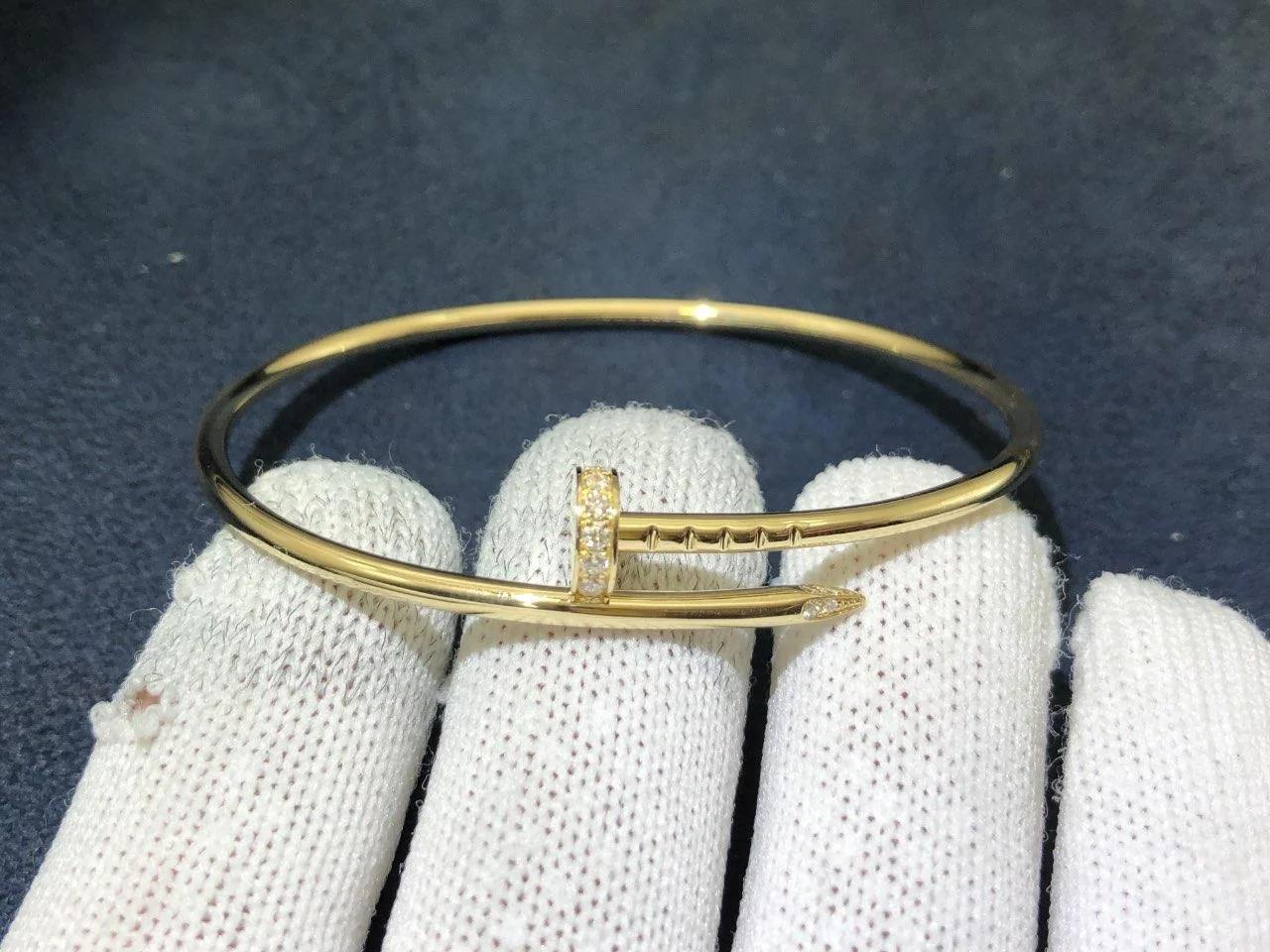
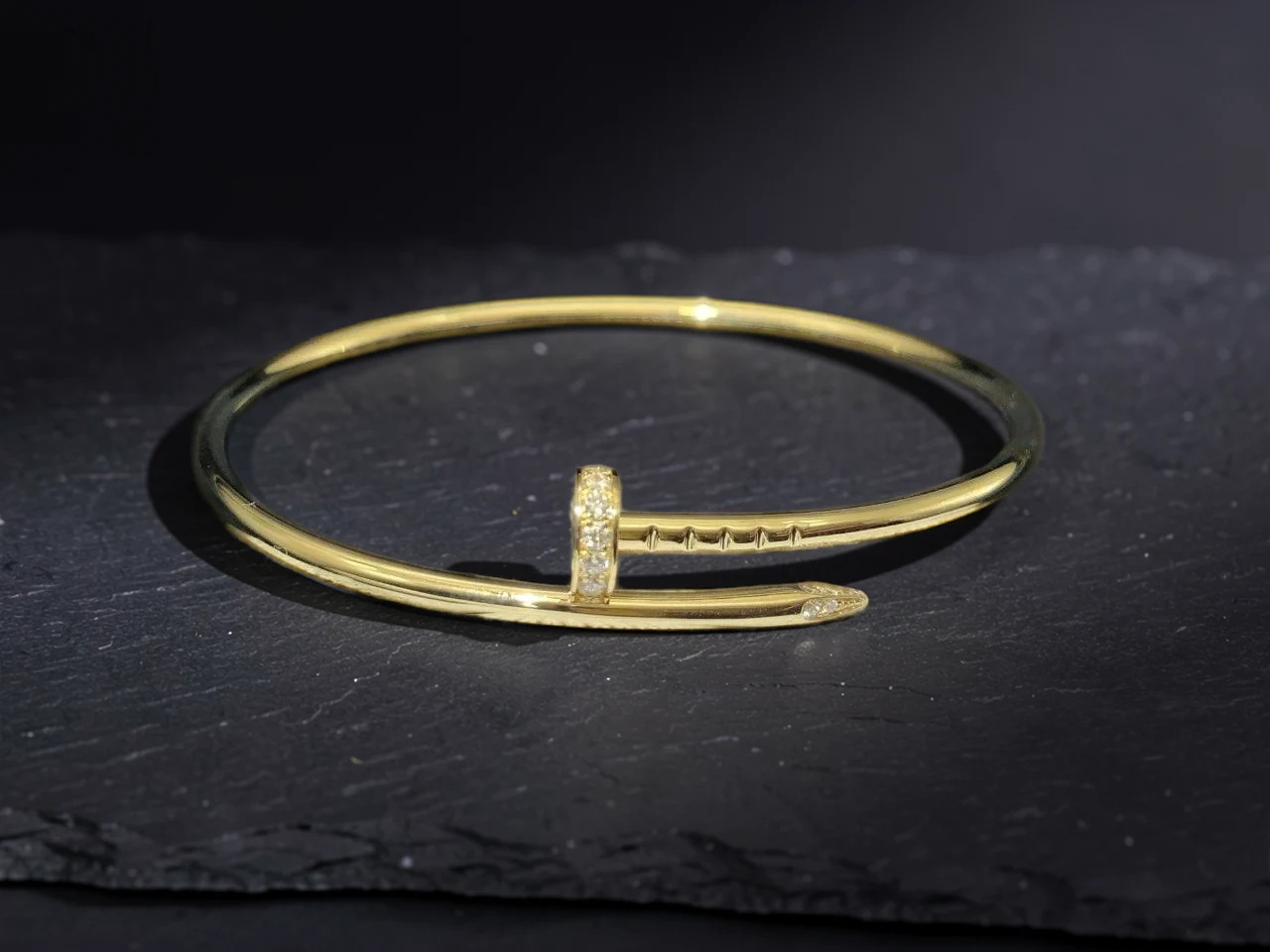
Rings, chains and stone settings need a closer look. Build the image around your photographed piece, then check the small details before publishing.
Remove the shooting surface or holder. Refine the mask around chain links, clasps and open spaces, then choose a plain background for your listing.
Explore background removalTry linen, stone or another AI background to suit the collection. Keep a clean catalog version and save a styled version for your shop or social posts.
Explore AI backgroundsSet the crop, spacing and background across your product photos. Resize exports for your store so a delicate ring and a statement bracelet sit comfortably together.
Explore catalog resizeYes. Start with a sharp photo in even light, with the entire piece visible. PhotoFig can change the background and composition; a clear original gives you better detail to work with.
Use your original product layer and review the result at full size. Refine the mask where needed, especially around thin chains and reflective edges. Check stone color, engravings and proportions against the original before publishing.
Yes. Export edited images for your listings and choose a crop that fits your store. For WooCommerce, you can also connect your catalog, review edited photos and publish selected replacements back to the store.
Upload a jewelry photo, try a new setting, and review the result beside your original.