For ceramics & homeware sellers
Let the shape and finish do the talking.
Turn photos of mugs, bowls, vases and home objects into a coherent collection. Simplify the background and give every silhouette enough space.
Edit your homeware photos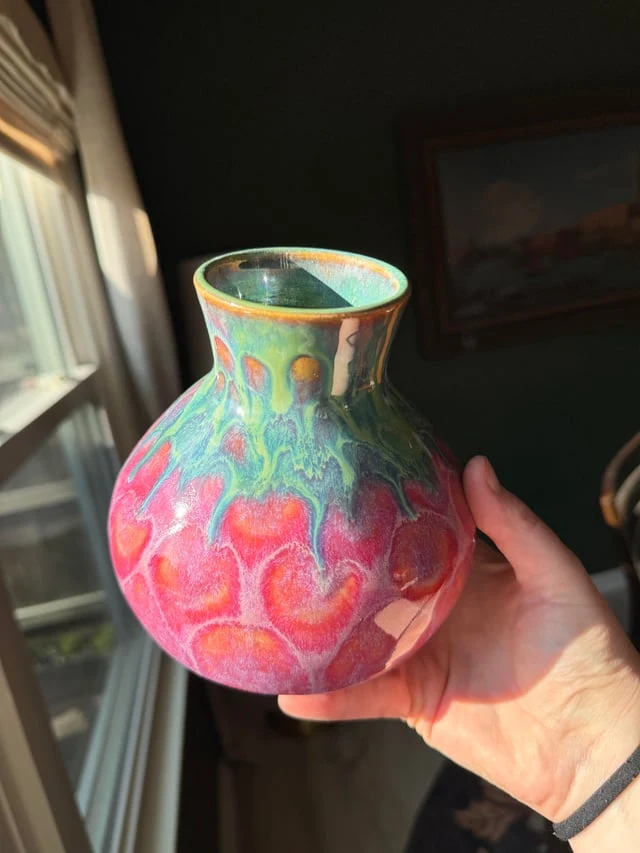
Before
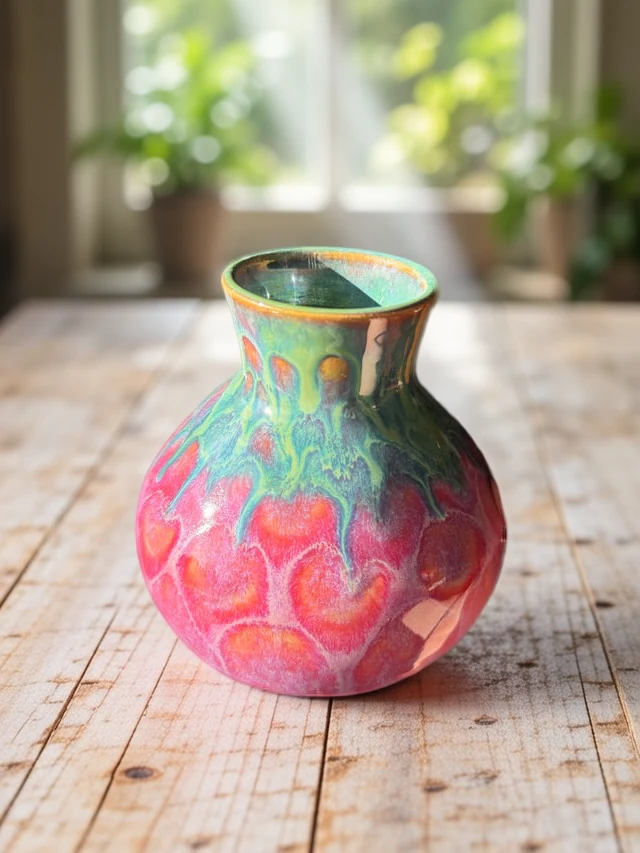
After
Prepare your collection for the shop
Refine the silhouette
Remove the background, then check the spaces inside handles and around rims. Keep the outline of a handmade piece faithful to the original.
Explore background removalGive it a sense of weight
Add Product Shadow to ground the piece on a simple background. Review the contact with the surface so the object does not look suspended.
Explore product shadowsBring the collection together
Match the canvas size, spacing and background across the range. Adjust each object’s placement to suit its shape.
Explore catalog resize
The finish is why someone chooses it.
Glaze variation, grain and small irregularities can be part of the piece’s character. Keep those details visible when changing its surroundings.
- Check the cutout inside mug handles and around fine stems or rims.
- Compare glaze color and surface texture with the original photograph.
- Include a separate scale photo so buyers can judge the object’s size.
Ceramics and homeware photo editing
Can PhotoFig remove the background inside a mug handle?
Background removal can isolate the piece, and the mask editor lets you refine missed areas. Check the opening inside the handle and other narrow gaps before exporting.
Can I place a vase or bowl in an AI scene?
Yes. Create an AI background around your product photo, then review the result. Keep a plain product image and a separate scale photo alongside styled views.
Can I prepare a collection with different shapes?
Yes. Use a shared layout or catalog resize, then adjust framing for each piece. Leave room around tall vases, wide bowls and handles so the whole object stays visible.