product updates
What’s New in PhotoFig: September 2026
Six weeks of PhotoFig updates: a new version of our cutout model, Magic Eraser, simpler batch work, better downloads, saved sizes, and three new languages.
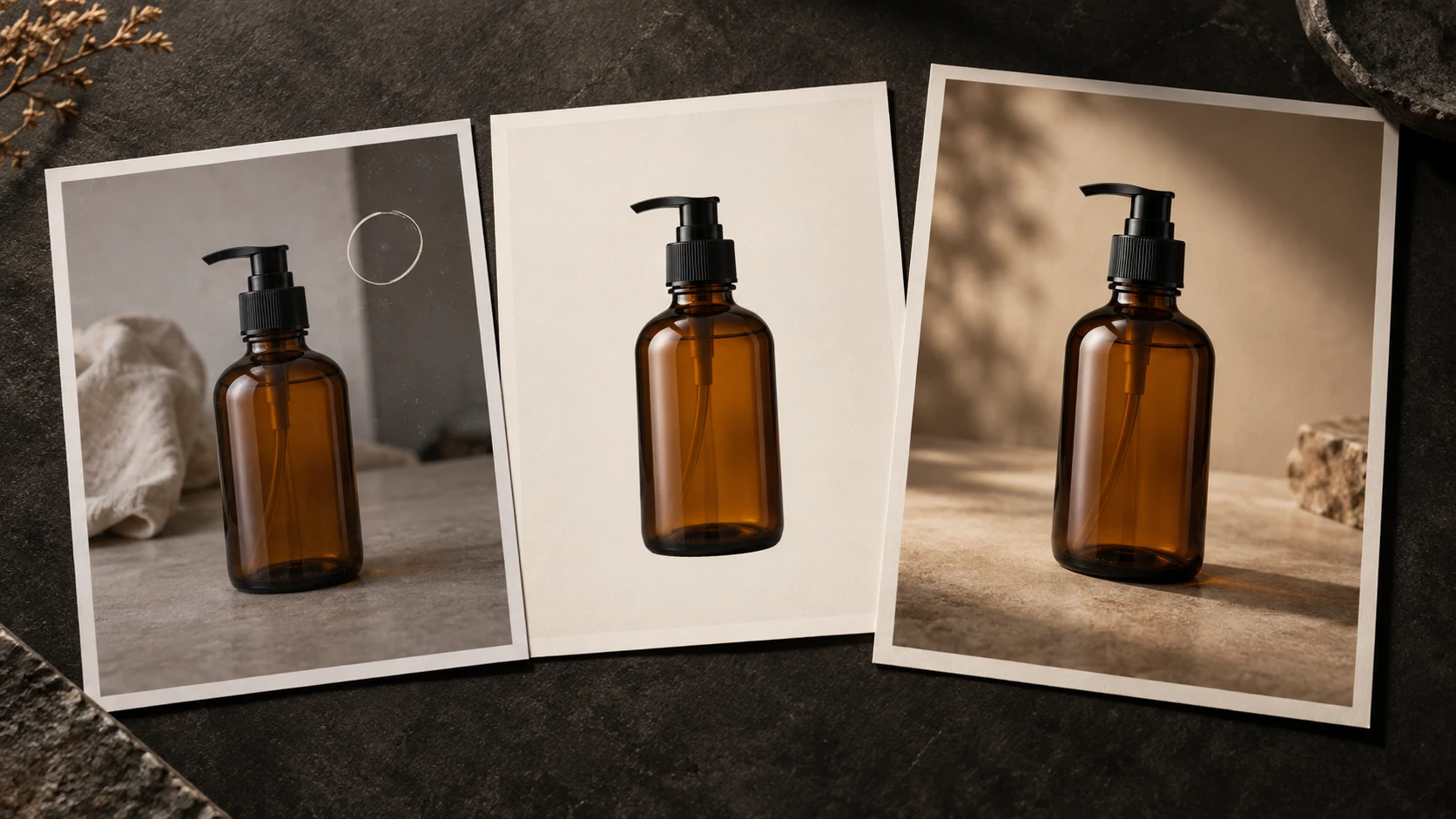
Quite a lot changed in PhotoFig over the past six weeks. Most of my time went into background removal, because everything else in the editor depends on getting the product cutout right. I also shipped Magic Eraser, cleaned up a few awkward parts of the batch workflow, made downloads easier to find, and added some smaller features that save repeated work.
Quick answer: The largest update is a new version of our cutout model, with extra checks for product parts it may have missed and better edge finishing. Magic Eraser is now in the editor, batch templates behave more predictably, custom sizes can be saved to a workspace, and PhotoFig is now available in French, Italian, and Lithuanian as well as English and German.
Cutouts got the largest update
The previous cutout system worked well on straightforward product photos, but it could struggle with open structures and unusual shapes. A mesh bag was an obvious example. An engine block was another: the old version could mistake a real section of the engine for background and remove it.
I replaced it with a new version of our cutout model. PhotoFig now makes the initial cutout, checks whether a substantial part of the product was left out, and then finishes the edge separately. On the difficult images I have tested, it keeps more of the product without giving up the fine openings that need to stay transparent.
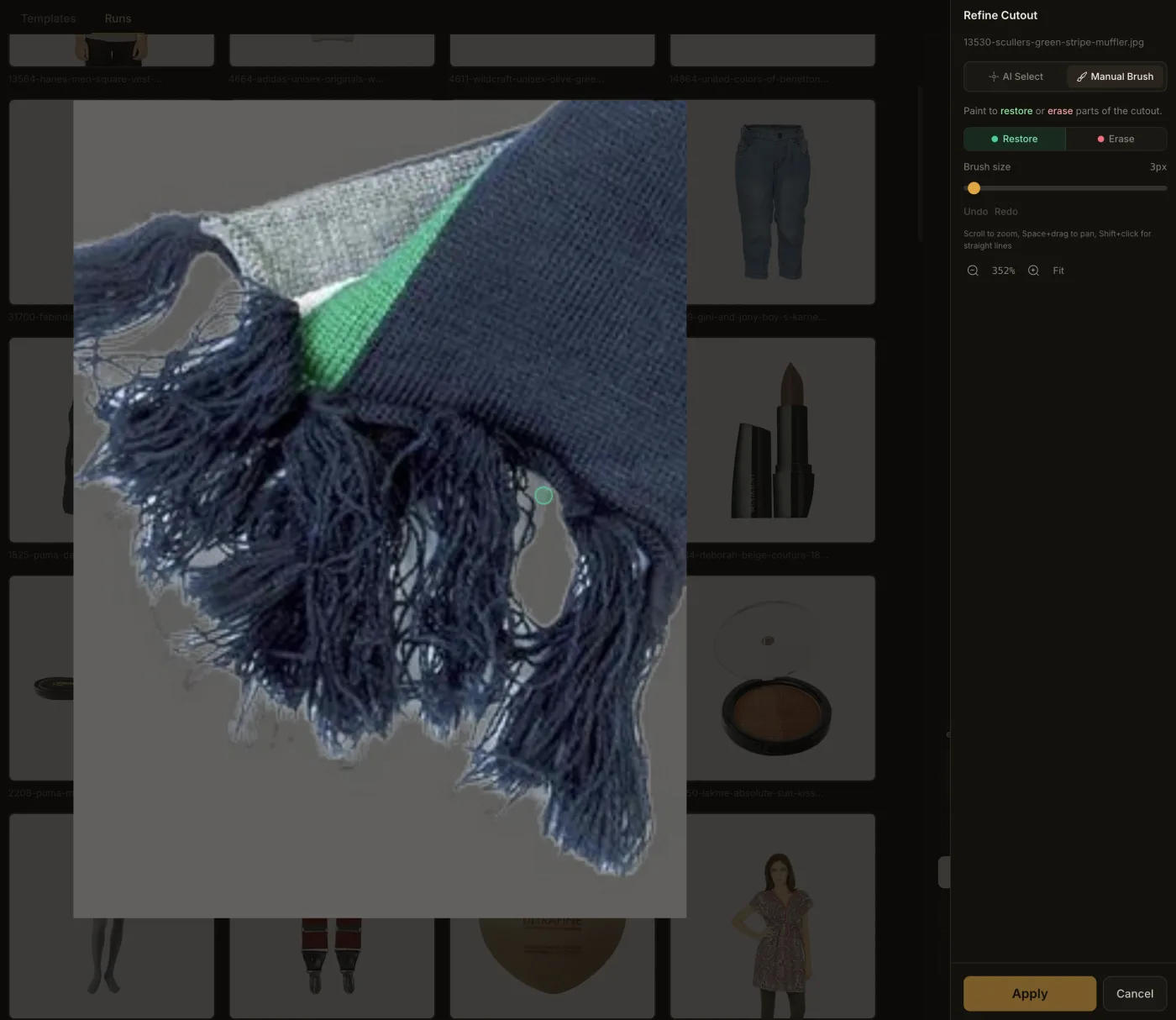
I am not treating background removal as solved. There will always be unusual photos, which is why Edit cutout is still there. I also fixed its edge finishing: a manual correction can now keep soft, partially transparent edges instead of turning them into a jagged binary outline.
Once a cutout is right, it becomes the master you can reuse on different backgrounds and canvases. The guide to consistent product photos across a catalog goes into that workflow in more detail.
Magic Eraser is now in the editor
This was an obvious missing tool. Background removal can clean up everything around a product, but it cannot remove a sticker, speck of dust, small logo, or other detail on the product itself.
You can now select an image layer, open Magic Eraser, and paint over the part you want gone. The view has zoom, pan, brush sizing, and undo. It is meant for small, targeted corrections rather than rebuilding half of a photograph.
If the erased area stays inside the product, PhotoFig keeps the existing cutout. If it changes the outside edge, PhotoFig makes a fresh cutout from the edited image. Magic Eraser has its own pass allowance and does not use AI credits.
Batch templates now start a batch
This one was simply confusing. You clicked a template because you wanted to use it, and PhotoFig could open the template editor instead.
That is fixed. Use starts a batch with the selected template already loaded. Customize a copy is still there when you actually want to change the template. Quick Run now takes the same direct route, and the next step remains visible after the upload finishes.
The flow is now:
- Choose Quick Run or a template.
- Add the product photos.
- Confirm the configured treatment.
- Process, review, and download the results.
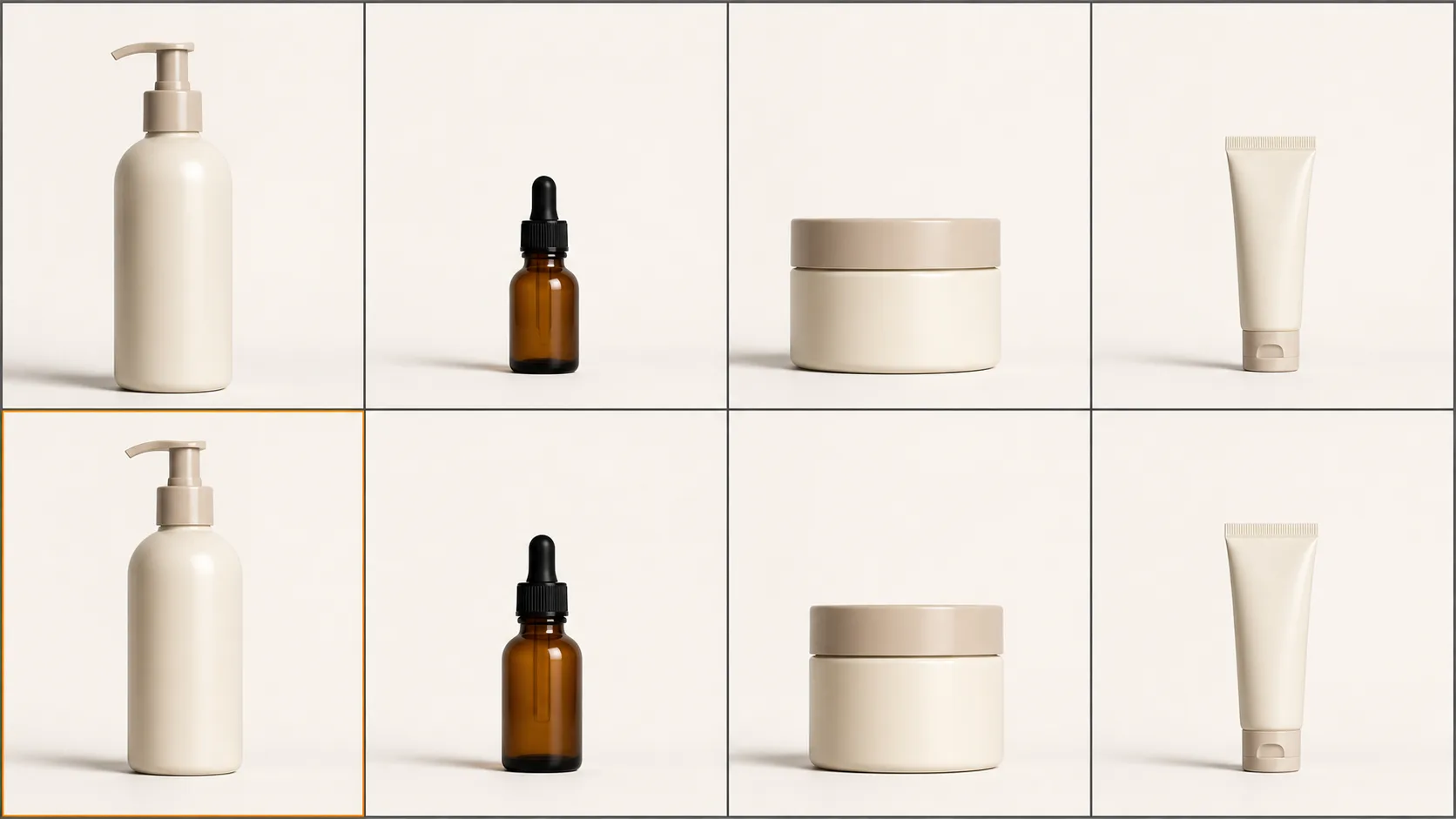
I also moved downloads into a more obvious position in the Designs library. You can select several designs and download them as a ZIP, and designs with a recently saved version move back to the front. You should not have to hunt for the image you just edited.
If you are deciding which dimensions each batch should produce, the product photo sizes cheat sheet explains why one high-resolution master is more useful than repeatedly cropping finished exports.
Save a custom size once
PhotoFig already included common marketplace and social sizes. The annoying part was having to type in your own recurring dimensions every time.
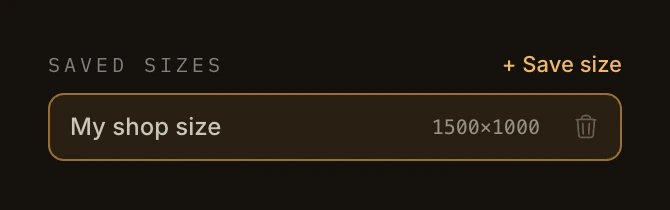
You can now name and save a custom size in the Resize panel. Saved sizes belong to the workspace, so they appear on another computer and for other workspace members too. A storefront square, email banner, or client delivery size only needs to be entered once.
French, Italian, and Lithuanian
PhotoFig can now be used in French, Italian, and Lithuanian, alongside English and German. The translation covers the editor, batch workflow, account pages, emails, public pages, and checkout. I did not want to call a language supported while dropping people back into English halfway through the product.
Checkout now also shows supported EUR or CHF prices based on the visitor’s market. USD remains the fallback if a localized price is not available.
A short note on the machinery behind the cutout
Automatic background removal and manual refinement used to share more of the same worker. I split them apart because they are different jobs. The automatic worker can concentrate on making the best first cutout it can; the refinement worker only handles the correction the user asked for.
I also replaced the old GPU worker pool and added enough capacity to run the new version of our cutout model without quietly lowering image quality to make it fit. Most people will never see that work, which is fine. They will see whether the handle, strap, mesh, or edge survives.
Next
I am going to keep working on difficult cutouts and batch workflows. Those are the two places where PhotoFig can save the most time, and where small failures are the most expensive when they repeat across a catalog.
If an older cutout disappointed you, try the original again. Saved versions will not change on their own, but a new background removal uses the current cutout model and keeps the previous result available for comparison.