product updates
What’s New in PhotoFig: October 2026
October in PhotoFig: WooCommerce store editing, Upscale, better cutouts, new AI backgrounds, and a phone flow from photo to camera roll.
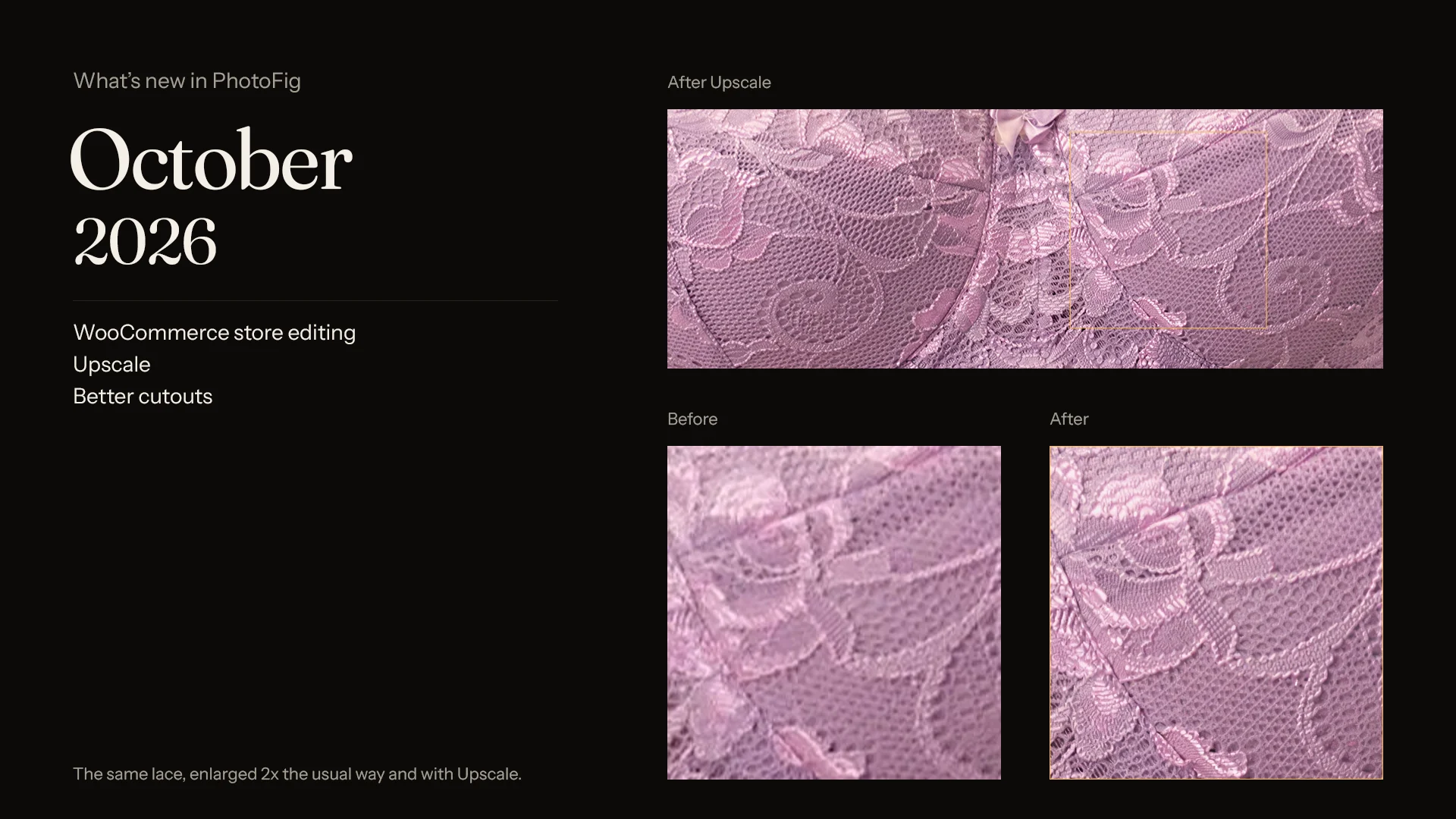
October was mostly about two things: working with photos where they already live, and making the pixels themselves better. The largest piece is the WooCommerce integration. Next to it are Upscale, better cutouts, and rebuilt AI backgrounds. There is also a long list of editor and batch changes that should save a few clicks on every photo.
Quick answer: You can now connect a WooCommerce store, edit its product photos in a batch or the editor, and publish back only what you approve. Upscale adds detail to small supplier photos. Cutouts keep more of the product, AI backgrounds draw real surface texture, and phones can take a photo all the way to the camera roll.
Edit photos where your products live
Most sellers I talk to do not start from a folder of photos. They start from a store, and the photos are already attached to products. Downloading them, editing them, and uploading them again in the right place is exactly the kind of work that should not need a person.
You can now connect a WooCommerce store to your workspace. The Store page lists your products; search by name, SKU, or category, and take the featured, gallery, or variation photos you want. Send them to a batch or open one in the editor. Imports run in the background, so you can keep working while a large selection comes in.
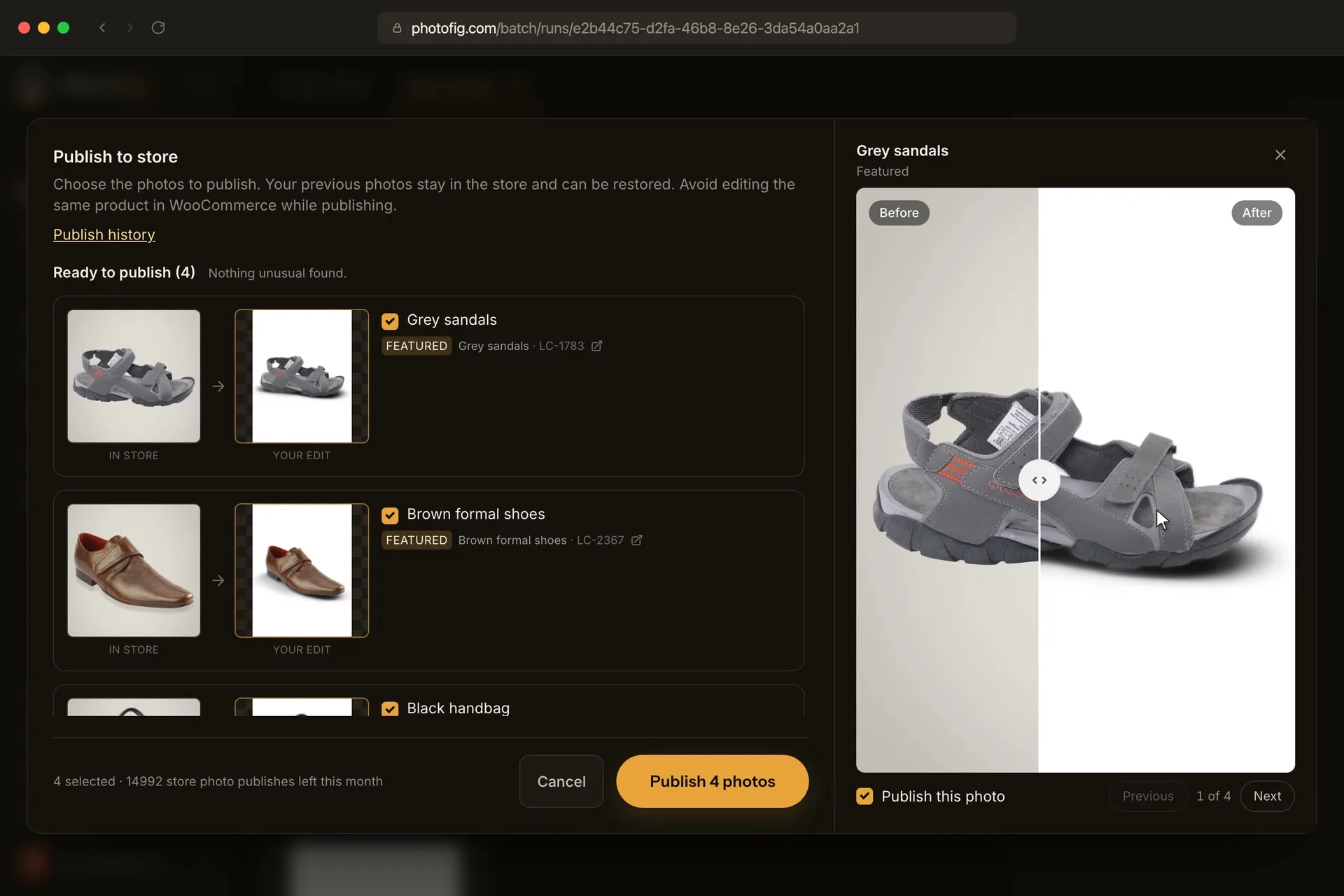
Nothing on the store changes until you approve it. Before publishing, PhotoFig checks the store and shows each replacement next to the photo it replaces. The previous photo stays in the store, so you can restore it from the photo’s history at any time. Products move from To do to Done as you finish them, which makes it easier to work through a catalog over several sessions.
Every plan, including Free, can connect a store.
Upscale for small supplier photos
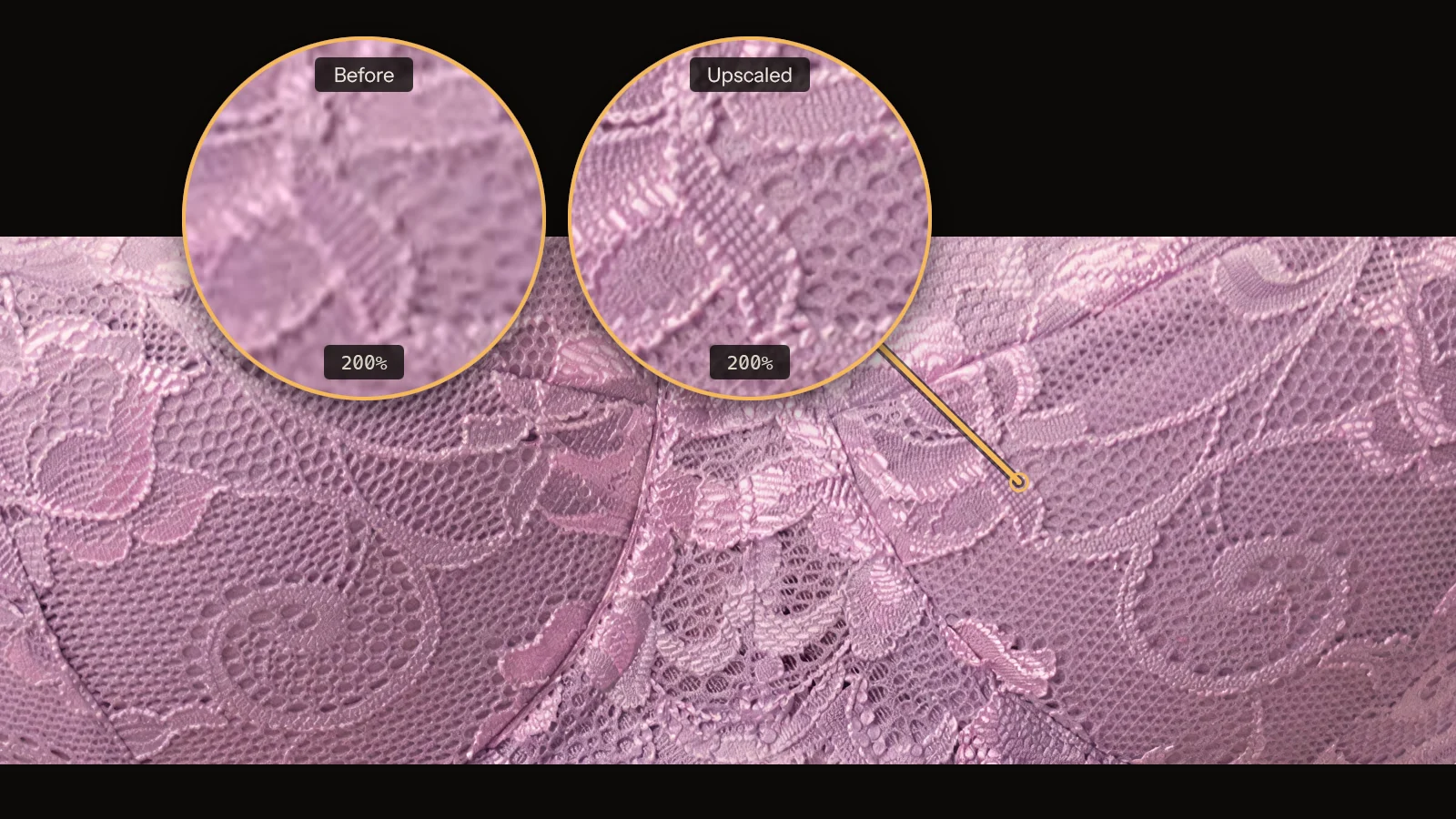
A supplier photo that is a few hundred pixels wide looks soft once it fills a listing. Upscale is in the editor now: select a photo layer, and PhotoFig enlarges it with AI-added detail. The layer keeps its size and place in your design, so nothing else on the canvas moves.
When a photo is small for the size it has on the canvas, Upscale appears with the other product fixes. Inspect shows the upscaled layer next to how it was, so you can judge the result at the pixel level before you download. Each upscale uses one AI credit.
Better cutouts
In September I wrote that background removal is not solved. In October I replaced the cutout pipeline again and kept improving it through the month. On a set of photos where the previous pipeline had failed, the new one was badly wrong on 2 of 34 instead of 17. The later updates make firmer decisions about what belongs to the product and leave fewer hazy patches inside it.
When a cutout is still wrong, you can now say so. Cutout wrong? lets you mark it and pick what went wrong: background left in, part of the product cut off, holes, or rough edges. I go through these marks to see where cutouts still fail. Edit cutout also shows the area you removed faded, tinted, or hidden, so it is easier to see what you are about to lose.
New AI backgrounds
AI backgrounds are rebuilt. Flat surfaces like walls and tables now show real texture, the scene fits the way the product was photographed, and each background is ready faster.
Editor changes
- Perspective: image layers have horizontal and vertical perspective, and the AI background behind a tilted layer blurs while you adjust it.
- Adjustments: Highlights, Shadows, and Warmth sit next to the existing ones, and you can adjust backgrounds too. Double-click a slider to reset it.
- Add Cutout: bring a product from another photo, or from your brand cutouts, into the design as its own layer. Product cutouts can be saved to brand assets from the layer.
- Downloads: name the file and pick its format before downloading. New photos open with the layout you keep downloading.
- Selection: clicks go through transparent parts of a cutout to the layer underneath, and snapping can be turned off, with gentler rotation snapping when it is on.
Batch changes
- Add photos to a finished batch, and give batches names.
- Folder uploads keep their folder structure, and the ZIP keeps the original file names.
- Open a batch photo in the editor and apply the edit back to its batch. The export sizes and the WooCommerce link stay attached.
- Templates can set Product Shadow strength and Highlights.
Paid plans now keep batch results for 30, 60, or 90 days, and the Free plan for two days. If some results were never downloaded, PhotoFig emails you two days before they are deleted, or one day before on Free.
If you run the same treatment across a whole catalog, the guide to consistent product photos explains how to pick the settings once and reuse them.
Phones
The full editor still needs a computer or tablet, but a phone no longer ends at a “use a bigger screen” message. Upload a photo, remove its background, and save the result to your camera roll with the share sheet. Batches offer Save photos for the whole set.