comparisons
PhotoFig vs Photoroom
PhotoFig vs Photoroom for sellers who edit whole catalogs: batch runs, matching product sizes, store publishing, limits, and when each tool fits best.
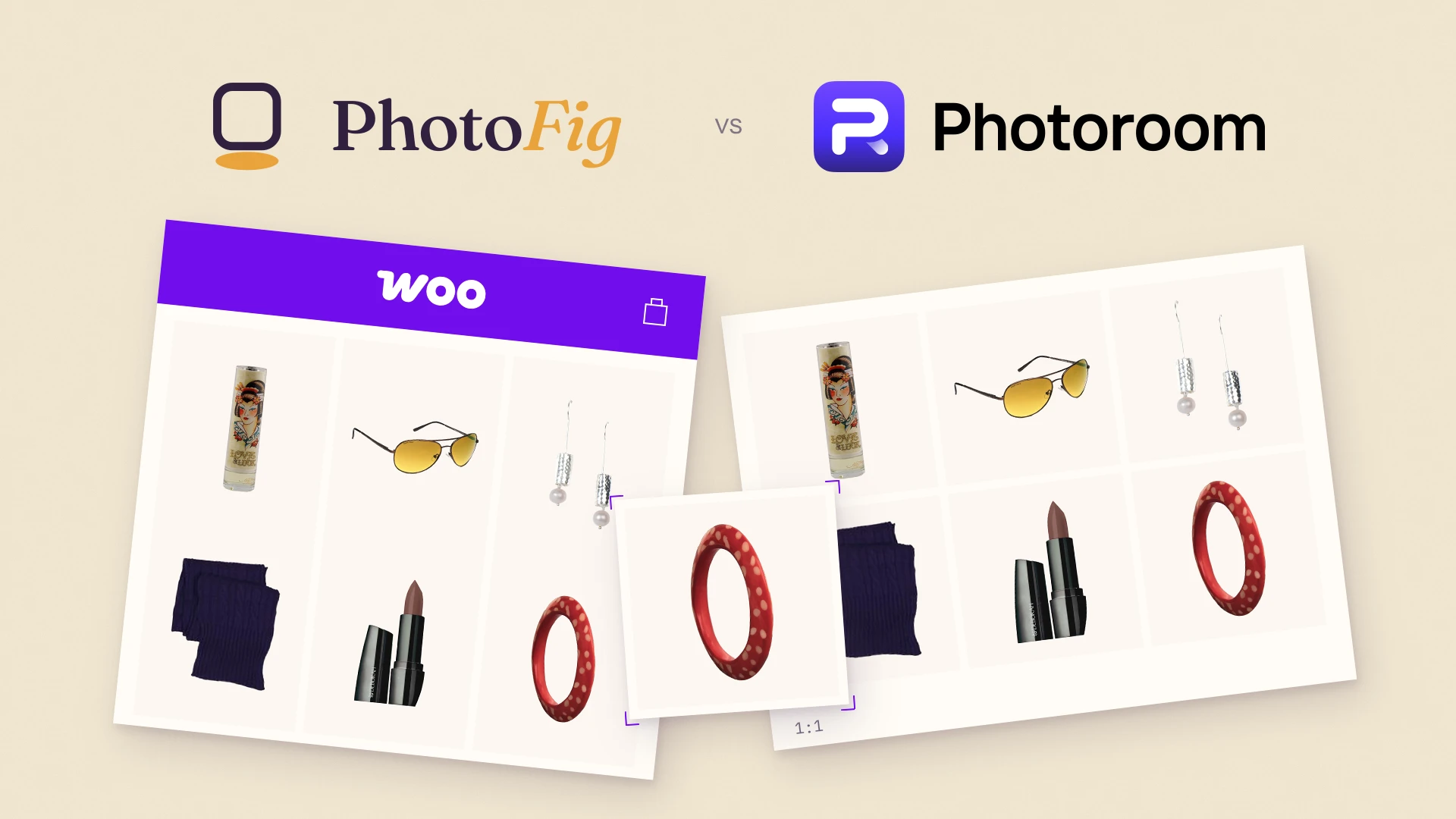
Photoroom is one of the best known names in product photo editing, and for good reason. Its cutouts are strong, its mobile apps are polished, and it makes a single product photo look finished in a few taps. If that is your workflow, it is hard to argue with.
I built PhotoFig for a different moment: when the problem is not one photo but the whole catalog. Hundreds of products, several suppliers, a store that needs the results, and every image expected to look like it belongs next to the others.
PhotoFig is a browser-based product photo editor for e-commerce catalogs. It removes backgrounds, adds AI scenes and product shadows without repainting the product, and runs a whole folder or WooCommerce store through the same template in one batch.
Quick answer: Choose Photoroom if you edit on your phone, sell mainly through Shopify, or want the widest set of single-image AI tools. Choose PhotoFig if you process whole catalogs in batch, want products that look consistently sized across the set, or sell on WooCommerce and want edited photos published back to your products after you review them.
What is Photoroom best at?
It is worth starting with what Photoroom does well, because those strengths are real.
- Mobile apps. Native iOS and Android apps make it easy to shoot and edit in the same place. PhotoFig runs in the browser and has no native app.
- Shopify. On its Max and Ultra plans, Photoroom imports a Shopify catalog and publishes updated images back to it.
- Breadth of AI features. AI fashion models, video generation, and a long list of single-image tools.
- Integrations and API. Zapier, Figma, Google Drive, and others, plus an API priced per image.
If most of your editing happens one product at a time, or on a phone between other jobs, Photoroom fits that well.
Can you close the browser while a batch runs?
Catalog work is mostly waiting. Uploading a few hundred photos and processing them takes time, and the question is what you are allowed to do in the meantime.
In my testing, a Photoroom batch on the web runs in the browser tab. Closing the tab before it finishes interrupts the work, so the computer has to stay on the page until the batch is done.
In PhotoFig, a batch run is processed on our servers. You choose a template, start the run, and can close the tab, switch devices, or come back the next morning. The results are waiting in your batch history.
The template is where the editing lives. It removes the background, sets the new one, positions the product, adds the AI shadow, and can export several sizes of every product in the same run: a large square for the marketplace, a portrait for social, whatever your channels need. Photoroom’s batch resizes to one size per pass, so each extra format is another round. Set the template up once and every future batch comes out the same way.
How do you make products look the same size?
This is the part I am proudest of, because it solves a problem most tools leave to you.
Fitting every product to the same margins, which is how most batch tools size products, including Photoroom’s padding and fit settings, does not make a catalog look consistent. A slim bottle and a wide jar fitted to the same canvas end up looking like different sizes, and a grid of them feels uneven even though every image followed the rules.
PhotoFig has Make products feel similarly sized. Pick one product in the batch as the reference, and PhotoFig adjusts the others so the whole set reads as consistent on the canvas. It judges size the way your eye does, from how much space the product actually takes up, not from the box around it. By default it never enlarges a product past the size its template gave it, so nothing gets blurry; if you want a fully uniform set, you can let smaller products grow, and PhotoFig tells you when that may soften detail.
I wrote more about why perceived size matters in how to make product photos consistent across a catalog.
Resizing photos you already like
Not every catalog needs editing. Sometimes the photos are fine and they just need to be the same size, with the product framed the same way.
That is what PhotoFig’s Catalog Resize is for. You set one exact output size, choose whether each photo fits inside it or fills it, and PhotoFig sizes and positions the whole folder while keeping the original backgrounds. Any photo that needs a different crop can be adjusted, rotated, or expanded right in the grid, and the finished set downloads as one ZIP. No background removal and no AI credits involved.
Photoroom’s batch can resize too: you pick a size and apply it to the selected images, one size per pass, then reposition anything that no longer sits right. The difference in PhotoFig is the per-photo crop step in the grid, which is usually where a resized catalog gets fixed.
The product photo sizes cheat sheet lists the sizes that matter in 2026 if you are deciding which ones you need.
Can you publish edited photos back to your store?
This is where the two tools differ most, and it depends on your platform.
Shopify. Photoroom connects to Shopify on its Max and Ultra plans and publishes updated images straight to your listings. PhotoFig does not have a Shopify connection yet; it exports Shopify-ready sizes that you upload yourself.
WooCommerce. Photoroom has no WooCommerce store integration. On every plan, including Free, PhotoFig connects to your WooCommerce store, lets you browse products by name, SKU, or category, and pick featured, gallery, or variation photos straight into a batch run. When the results are ready, you review each replacement next to the photo currently in your store, and nothing changes until you approve it. Your previous photos stay in the store and can be restored from the update history.
That review step is deliberate. Bulk changes to a live store should be easy to check and easy to undo.
How much do PhotoFig and Photoroom cost?
Both tools give you a monthly allowance of exports and AI credits, but the units are not the same.
Photoroom counts exports and AI credits. According to its help center (July 2026), the monthly export allowance is 100 on Free, 1,000 on Pro, 3,000 on Max, and 10,000 on Ultra, and a batch export counts as one export per image. It is one limit for everything that leaves Photoroom: editor downloads, saves, shares, and Shopify publishes draw on it too, so a 1,000-photo batch on Pro uses the whole month’s exports. Shopify publishing is included on Max and above. AI tools draw on a separate credit allowance, and a basic AI background costs two credits: Pro’s 8,000 credits cover up to 4,000 of them.
| Plan (Photoroom) | Price | Exports / month | AI credits / month |
|---|---|---|---|
| Pro | $12.99 / month | 1,000 | 8,000 |
| Max | $34.99 / month | 3,000 | 25,000 |
| Ultra | $99 / month | 10,000 | 75,000 |
Paying yearly costs $89.99, $250, and $990 a year.
PhotoFig counts batch exports and AI credits too, and one credit covers one AI background or one AI shadow. Batch exports only count photos downloaded from batch runs and Catalog Resize. Downloads from the editor never use them, so after a 1,000-photo batch on Starter you can still download from the editor as usual. Background removal never uses AI credits: the Free plan includes 30 new photos a month with background removal, and paid plans are unlimited. A large background-removal run does not eat into the credits you use for AI backgrounds and Product Shadow.
| Plan (PhotoFig) | Price | New photos / month | Batch exports / month | AI credits / month |
|---|---|---|---|---|
| Free | $0 | 30 | 5 | 15 |
| Starter | $9.95 / month | Unlimited | 1,000 | 600 |
| Pro | $29.95 / month | Unlimited | 5,000 | 2,000 |
| Studio | $79 / month | Unlimited | 25,000 | 7,500 |
Paying yearly costs $90, $270, and $708 a year, or $7.50, $22.50, and $59 a month.
Side by side
| PhotoFig | Photoroom | |
|---|---|---|
| Background removal | Yes | Yes |
| AI backgrounds and shadows | Yes | Yes |
| Monthly exports | Batch exports: Free 5, Starter 1,000, Pro 5,000, Studio 25,000; editor downloads not counted | Free 100, Pro 1,000, Max 3,000, Ultra 10,000, shared by editor and batch exports |
| Batch runs that continue after you close the tab | Yes | No, the web batch stays in the browser |
| Several export sizes per product in one batch run | Yes, in templates | One size per resize pass |
| Matching perceived product size across a batch | Yes | Padding and fit per image |
| Resize photos you like, with per-photo crops | Yes, Catalog Resize | Batch resize, then reposition |
| WooCommerce: import and publish back | Yes, every plan, with review and restore (5 to 15,000 store photo publishes a month, from batch runs, Catalog Resize, or the editor) | No |
| Shopify: import and publish back | Not yet | Yes, Max and Ultra |
| Native mobile apps | No | Yes, iOS and Android |
| Team members | Unlimited on paid plans | Up to 50 seats |
| API | Pro and Studio plans | Separate per-image pricing |
Which one should you choose?
If you sell on Shopify, edit on your phone, or mostly work on one product at a time, Photoroom is a very good tool and probably the easier fit.
If your work starts with a folder or a store full of products, if you want the whole set to look consistently sized, or if you sell on WooCommerce and want to review every change before it reaches your store, PhotoFig is built for that job. The fastest way to know is to run a representative batch of your own products through both and compare the results as a grid.
Sources
- Photoroom Help Center, Export limit, updated July 16, 2026.
- Photoroom Help Center, Publish updates to Shopify (web app), updated May 3, 2026.
- Photoroom, Pricing, for US dollar prices, AI credits, export limits, Shopify availability, and up to 50 team seats per plan, checked October 2, 2026.
- Photoroom, Integrations, checked October 1, 2026.
- Photoroom, API pricing, checked October 1, 2026.
- Photoroom Help Center, Resize a batch of images (web app) and Set the alignment and padding for a batch of images, checked October 1, 2026.